
This site is currently being upgraded. You may see some code pages. You can still check out products, and feel free to contact us if you have any issues.
How to Share Files Between iPhone and Android Using Quickshare and 3rd Party Apps
Sharing files between devices has become part of everyday life. Whether you are sending vacation photos, work documents, videos, or music, a fast wireless transfer method can make the process much easier.
For Apple users, AirDrop has long been the default way to send files between iPhone, iPad, and Mac devices. For Android and iPhone users, however, file sharing used to be more limited because AirDrop and Android sharing tools worked in separate ecosystems.
The good news is that this is starting to change. Google’s Quick Share now supports AirDrop transfers on selected Android phones, making it easier for Android users to send files to iPhone, iPad, and macOS devices. Some Android brands are also rolling out AirDrop-compatible Quick Share support, while third-party apps such as LocalSend and Blip remain useful for cross-platform sharing.
In this guide, we will explain how to transfer files from Android to iOS devices, which Android phones support Quick Share and AirDrop-style sharing, and the best alternative apps for seamless file transfers between Android and iPhone users.
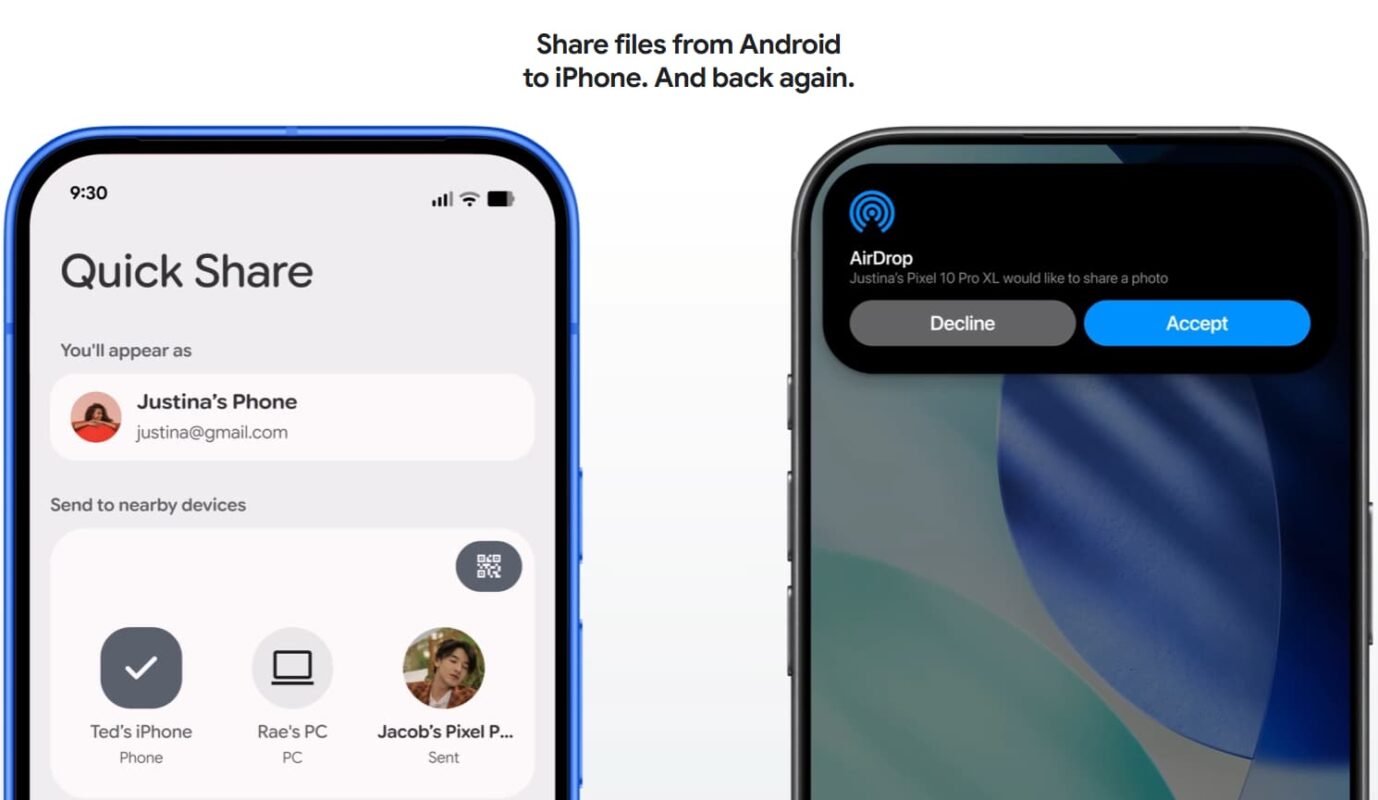
Latest Android Phones That Support AirDrop with Quick Share
Several Android brands now offer built-in wireless file-sharing features that work similarly to AirDrop. Most of these features rely on Wi-Fi, Bluetooth, or nearby device detection to create fast local transfers.
Quick Share is now the main Android file-sharing feature. It was previously known as Nearby Share, and it allows users to send photos, videos, documents, and other files to nearby devices. On supported Android phones, Quick Share can also work with AirDrop, allowing users to send files between Android and Apple devices.
However, support depends on the phone model, software version, and region. Not every Android phone can directly share files with AirDrop yet. If your device does not support this feature, you can still use QR code sharing, browser-based tools, or third-party apps.
It is also worth noting that Google built this AirDrop interoperability independently, without a formal partnership with Apple. The feature works by using Google’s own implementation of the AirDrop protocol.
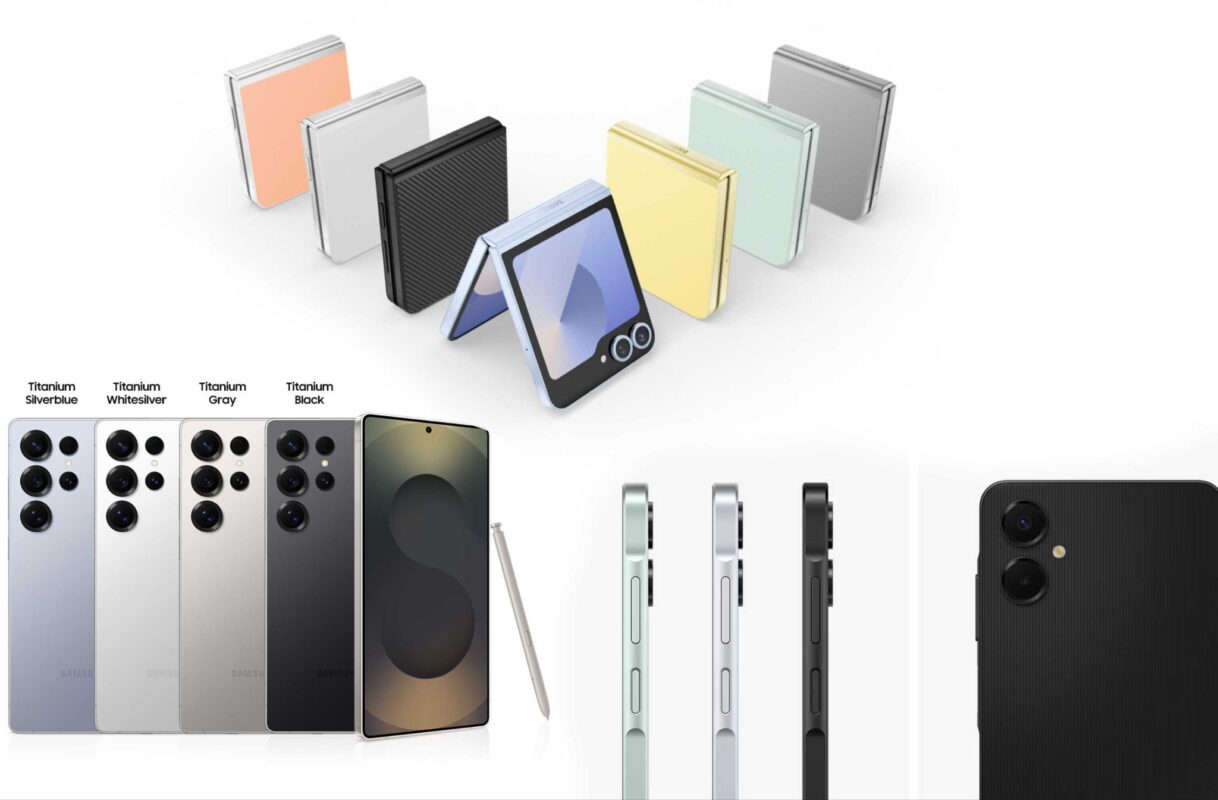
1. Samsung Galaxy S26, S25, S24, S23 and Selected Galaxy Z Devices
Samsung devices come with Quick Share, which allows users to wirelessly send files to nearby devices. Quick Share works similarly to AirDrop and supports fast transfers for photos, videos, documents, and other file types.
Supported Samsung devices may include:
- Samsung Galaxy S26 Series
- Samsung Galaxy S25 Series
- Samsung Galaxy S24
- Series Samsung Galaxy S23 Series
- Samsung Galaxy Z Fold 5, Z Fold 6, Z Fold 7,
- Galaxy Z Flip 5, Z Flip 6, Z Flip 7
Note: The Galaxy S26 series was the first to receive Quick Share AirDrop support in March 2026. Support for older models is rolling out progressively via software updates, so availability depends on your model and region.
To use Quick Share:
- Open the file you want to share > Tap the Share button > Select Quick Share > Enable the “Share with Apple devices” toggle in Quick Share settings if you have not done so already > Choose the nearby device > Accept the transfer on the receiving device
For Android-to-Android transfers, Quick Share works across many modern Samsung and Android devices. For Android-to-iPhone transfers, selected newer Samsung models may support Quick Share with AirDrop, depending on the model and software version.
Shop Samsung Smartphones at KTS.
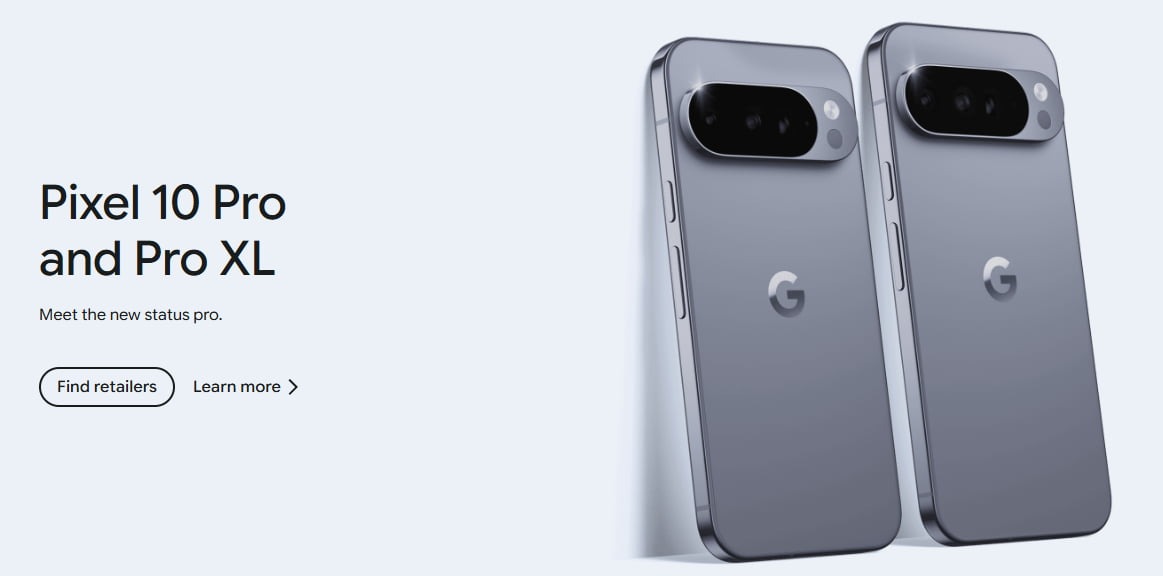
2. Google Pixel 10, Pixel 9 and Newer Supported Pixel Devices
Google Pixel devices support Quick Share for fast wireless transfers between Android devices. On newer Pixel models, Quick Share can also work with AirDrop, allowing users to send files to iPhone, iPad, and macOS devices without installing a separate sharing app.
Supported Pixel devices may include:
Google Pixel 10 Series Google Pixel 9, Pixel 9 Pro, Pixel 9 Pro XL, and Pixel 9 Pro Fold Other newer supported Pixel devices, depending on software availability
Note: The Pixel 9a does not support Quick Share AirDrop compatibility. If you own a Pixel 9a, use a third-party app such as LocalSend or Blip for cross-platform transfers.
To use Quick Share on Pixel:
- Turn on Bluetooth and Wi-Fi > Open the file you want to share > Tap Share > Select Quick Share > Choose the receiving device > Accept the transfer
For AirDrop-compatible sharing, the Apple device may need to set AirDrop visibility to “Everyone for 10 Minutes” so the Android phone can detect it. Availability may vary by Pixel model, region, and software update.
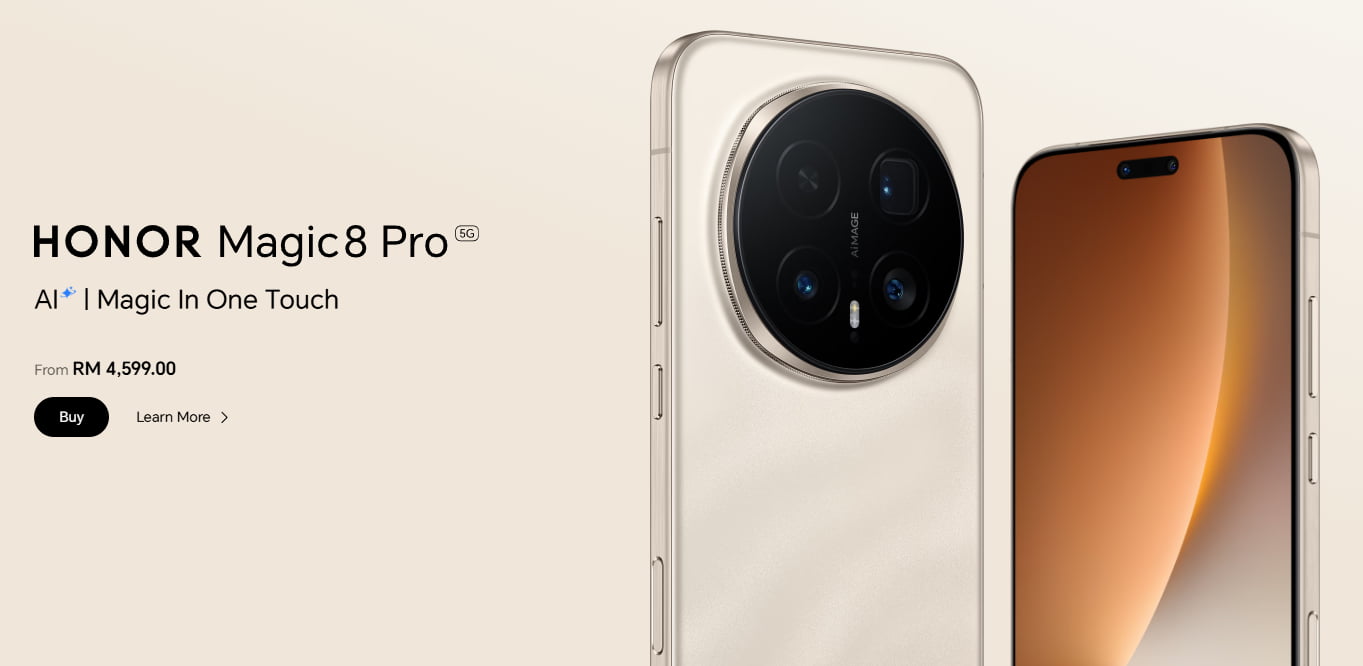
3. Other Android Brands That Support Quick Share with AirDrop
Besides Google Pixel and Samsung, Google is expanding Quick Share with AirDrop compatibility to more Android brands. This means selected phones from these brands may be able to send files directly to iPhone, iPad, and macOS devices through Quick Share and AirDrop.
Brands expected to support or expand Quick Share with AirDrop compatibility include:
- OPPO: Find X9 series, Find N6 series
- OnePlus: OnePlus 15
- Vivo: X300 Ultra
- HONOR: Magic8 Pro, Magic V6 (confirmed, coming soon)
Supported models may vary by country, software version, and rollout schedule. If you are using one of these brands, check your phone’s system update and Quick Share settings to see whether AirDrop-compatible sharing is available.
Alternative Apps to AirDrop from Android Phones to iPhones
For users who do not have this feature yet, third-party apps remain the easiest way to transfer files between Android and iPhone.
If you regularly transfer files between Android and iOS devices, using dedicated cross-platform apps is often the easiest solution. These apps are especially useful if your phone does not support Quick Share with AirDrop yet.
Here are some useful alternatives for users who want to transfer files from Android to iPhone or iPhone to Android.
1. HONOR Share and HONOR Connect
HONOR Share is a wireless file-sharing feature available on HONOR smartphones. It allows users to transfer photos, videos, documents, and other files between compatible HONOR devices.
Key features include:
- Fast wireless transfer speeds Easy pairing process No mobile data required for local transfers Supports large file transfers
- HONOR also has cross-device features such as HONOR Connect, which can help selected HONOR devices connect with iPhones. However, compatibility may depend on the phone model, software version, and supported features in your region.
- HONOR users who do not have direct iPhone sharing support can still use apps such as LocalSend or Blip to transfer files between Android and iOS.
2. Xiaomi Interconnectivity App / Xiaomi HyperConnect
Xiaomi devices include ecosystem features through HyperOS and Xiaomi Interconnectivity tools. These features are designed to help Xiaomi users connect phones, tablets, laptops, and other supported devices more smoothly.
These features can help users:
- Share files wirelessly Sync photos and videos Connect phones and tablets Transfer content between supported devices
- Some Xiaomi interconnectivity features may also support sharing with iPhone, depending on the app version, device model, and region. This makes Xiaomi devices more convenient for users who often move files between Android and iOS.
- If your Xiaomi device does not support direct iPhone sharing, you can still use browser-based sharing tools or cross-platform apps.
3. LocalSend
LocalSend is one of the most popular AirDrop alternatives for cross-platform sharing. Unlike manufacturer-specific tools, LocalSend works across many platforms, making it suitable for users who own different types of devices.
LocalSend works across: Android, iPhone, Windows, macOS and Linux
The app transfers files directly over a local Wi-Fi network. This makes it useful for fast sharing without uploading files to cloud storage.
How to use LocalSend:
Install LocalSend on both devices Connect both devices to the same Wi-Fi network > Open the app > Select the files you want to send > Choose the receiving device Accept the transfer
LocalSend is especially useful for users who frequently transfer files from Android to iPhone without using cables.
Advantages include:
- No ads Open-source platform Fast local transfers Privacy-focused design Supports large files Works across multiple operating systems
- Many users consider LocalSend one of the best AirDrop alternatives because it is simple, lightweight, and not limited to one phone brand.
4. Blip
Blip is one of the best cross-platform file sharing between Android and iOS. It focuses on making transfers simple for users who want to send files between Android, iPhone, and other devices without a complicated setup.
Blip works across: Android, iPhone, Windows, macOS and Linux
To use Blip:
- Install the app on both devices. Open the app. Select the files you want to send. Choose the receiving device or contact. Send the files directly.
- You only need to register your email and have the app installed on every device you wish to transfer files to. You do not need to be nearby, as Blip only requires an internet connection. You can share from wherever you are and send files through Blip share to those who has registered their email with Blip.
Blip is suitable for casual users who want a simple way to transfer files between iPhone and Android without relying on cables or slow messaging apps.
Conclusion
Android-to-iPhone file sharing is now much easier than before. Apple AirDrop is no longer completely separate from Android in every case, as Quick Share now supports AirDrop transfers on selected Android phones.
Newer supported devices from Google Pixel, Samsung, OPPO, Vivo, and HONOR may be able to send files directly to iPhone, iPad, and macOS devices through Quick Share and AirDrop. However, support still depends on the phone model, software version, and rollout availability.
For phones that do not support Quick Share with AirDrop yet, apps such as LocalSend and Blip remain reliable alternatives. They allow users to transfer photos, videos, documents, and other files between Android and iPhone without cables or complicated setup.
For the best experience, keep both devices updated, use a stable Wi-Fi connection, and choose the sharing method that works best for your device. Looking to upgrade? Explore the latest smartphones at KTS for smoother connectivity and easier file transfers.